How to Verify Your Phone Number in GB WhatsApp
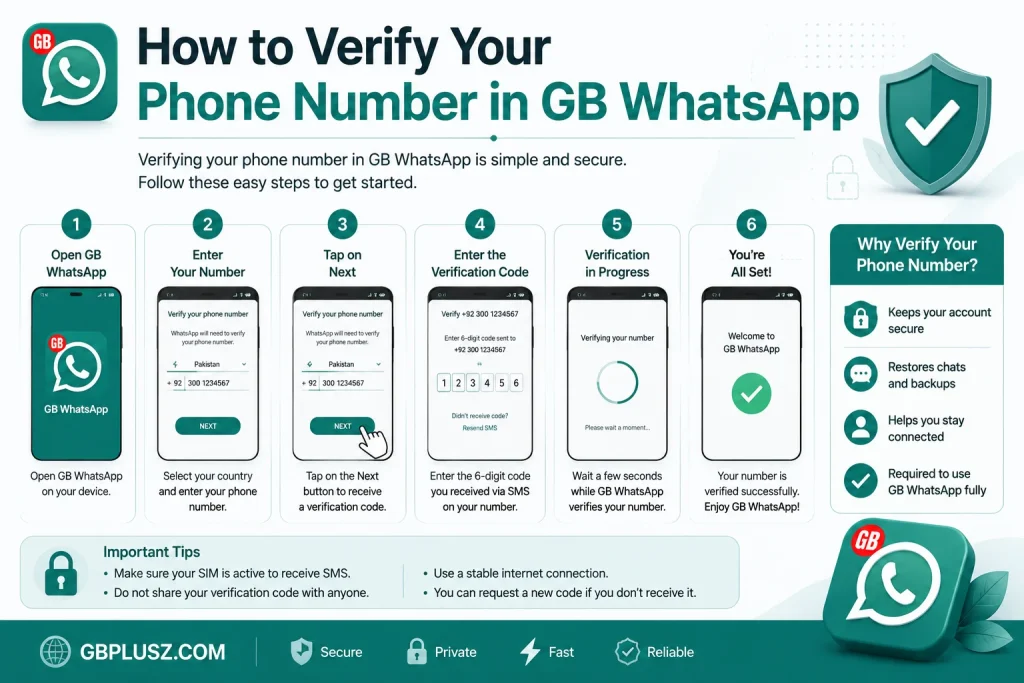
To verify your phone number in GB WhatsApp, open the app, enter your mobile number with the correct country code, request the verification code, enter the OTP you receive by SMS, and wait for verification to complete. After successful verification, you can restore your chats and start using the app.
Note: GB WhatsApp is an unofficial version of WhatsApp. The verification process may not always work if the app version is outdated or incompatible.
Steps to Verify Your Phone Number
Step 1: Open GB WhatsApp
Launch GB WhatsApp on your Android device and ensure you have a stable internet connection.
Step 2: Enter Your Phone Number
- Select your country.
- Enter your mobile number.
- Double-check the number before continuing.
Step 3: Request the Verification Code
Tap Next and confirm your number. GB WhatsApp will send a verification code by SMS.
Step 4: Enter the OTP
Type the verification code exactly as received. If your device supports automatic SMS detection, the code may be entered automatically.
Step 5: Complete Setup
After verification, restore your chat backup if available and finish setting up your profile.
Why Verification May Fail
You may experience verification problems because of:
- Incorrect phone number
- Weak internet connection
- Delayed SMS delivery
- Expired verification code
- Outdated GB WhatsApp version
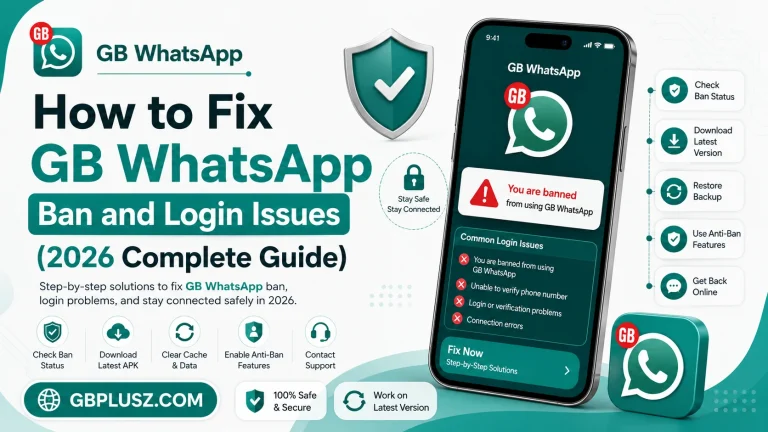
How to Fix Verification Problems
If verification fails, try these solutions:
- Check that your phone number and country code are correct.
- Use a stable Wi-Fi or mobile data connection.
- Wait a few minutes before requesting another code.
- Restart your phone and try again.
- Update to the latest GB WhatsApp version.
- Use voice verification if the option is available.
Common Verification Errors
| Issue | Solution |
|---|---|
| OTP not received | Check your network and request a new code. |
| Invalid verification code | Enter the latest code you received. |
| Verification failed | Confirm your phone number and try again. |
| Code expired | Request a new verification code. |
| App stuck on verification | Restart the app or update to the latest version. |
Frequently Asked Questions
How long does verification take?
Most users receive the SMS code within a few minutes, although delivery times can vary.
Can I verify with the same number used on WhatsApp?
Yes, but switching between the official WhatsApp and GB WhatsApp may require a new verification.
What should I do if I never receive the OTP?
Verify your phone number, check your mobile signal, wait a few minutes, and request a new code. If available, try voice verification.
Can I restore my chats after verification?
Yes. If you have a compatible backup, you can restore your chats during the setup process.
Conclusion
Verifying your phone number in GB WhatsApp is a quick process. Enter the correct mobile number, complete SMS verification, and restore your backup if available. If verification does not work, updating the app and checking your network connection usually resolves the issue.