GB WhatsApp Troubleshooting Guide
GB WhatsApp is a popular modified version of WhatsApp that offers additional customization, privacy features, and enhanced messaging options. While many users enjoy its extra functionality, they may occasionally encounter technical issues such as installation errors, verification problems, app crashes, or notification failures.
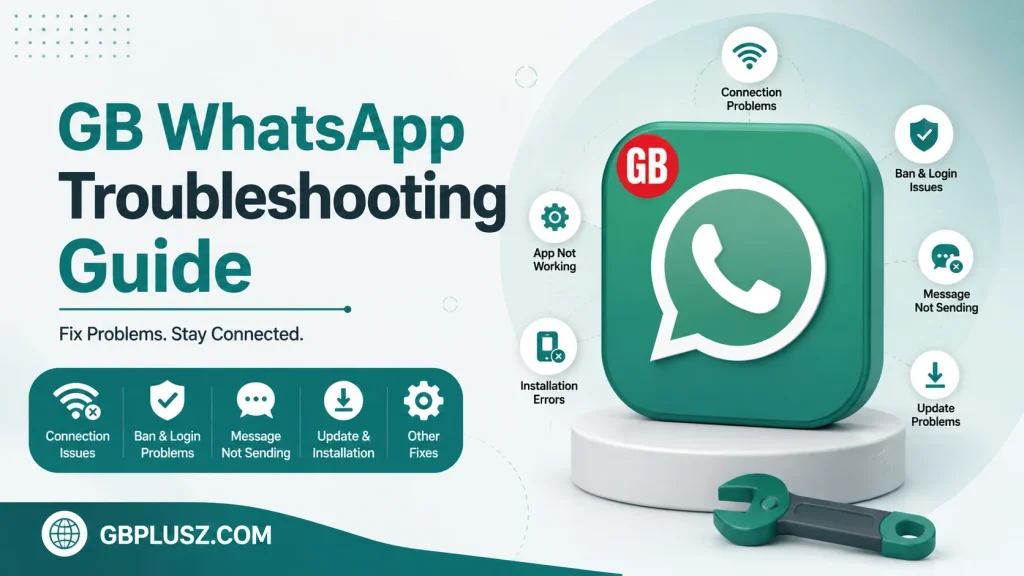
This GB WhatsApp Troubleshooting Guide covers the most common problems users face and provides practical solutions to help restore normal app performance.
Common GB WhatsApp Problems
Users may experience various issues while using GB WhatsApp, including:
- App not installing
- Verification code not received
- Temporary ban message
- App crashing or freezing
- Backup restore problems
- Notifications not working
- Media download failures
- Slow performance
- Login errors
- Update issues
Fortunately, many of these problems can be resolved with a few simple steps.
1. GB WhatsApp Not Installing
If GB WhatsApp won’t install on your Android device, try the following:
Possible Causes
- Corrupted APK file
- Insufficient storage
- Incompatible Android version
- Installation permissions disabled
- Package conflict
Solutions
- Download the APK again from a trusted source.
- Free up storage space.
- Enable installation from unknown sources if prompted.
- Restart your phone.
- Make sure your Android version is supported.
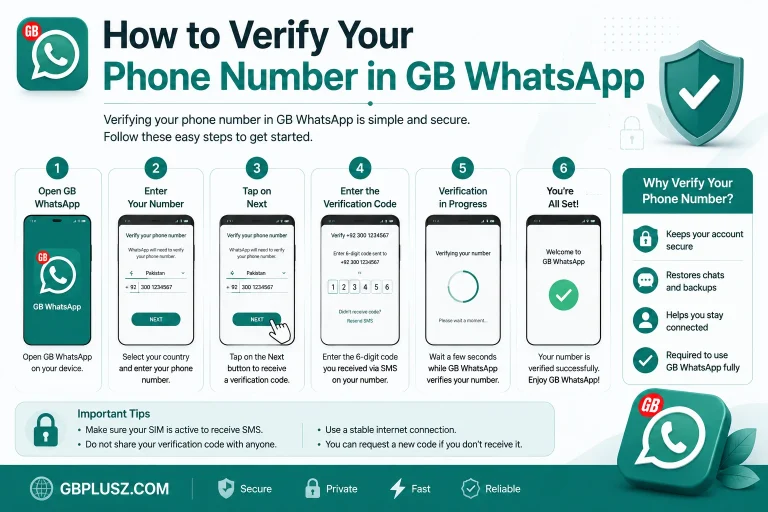
2. Verification Code Not Received
Sometimes users cannot receive the SMS verification code.
Try These Solutions
- Check your mobile network.
- Confirm your phone number is entered correctly.
- Wait a few minutes before requesting another code.
- Restart your phone.
- Try voice verification if available.
Avoid requesting verification codes repeatedly within a short period.
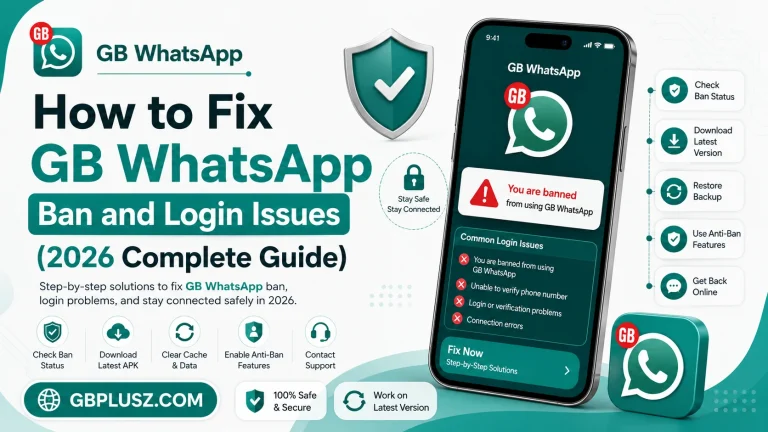
3. Temporary Ban Issue
One of the most common problems is seeing a temporary ban warning.
Why It Happens
- Using an outdated version
- Unusual messaging activity
- Policy enforcement
- Compatibility issues
How To Fix It
- Wait until the temporary timer expires.
- Update to the latest version.
- Avoid sending bulk messages.
- Back up your chats regularly.
4. App Keeps Crashing
If GB WhatsApp closes unexpectedly:
Possible Fixes
- Restart your device.
- Clear the app cache.
- Update to the latest version.
- Free some storage space.
- Close unnecessary background apps.
5. GB WhatsApp Running Slowly
Slow performance can happen after extended use.
Improve Performance
- Restart your phone.
- Delete unnecessary media files.
- Keep enough free storage.
- Update the application.
- Close unused applications running in the background.
6. Notifications Not Working
If new messages are not appearing as notifications:
Check
- Notification permissions
- Battery optimization settings
- Internet connection
- Background app restrictions
Restart the application after making any changes.
7. Unable To Send Or Receive Messages
If messages remain pending:
Try The Following
- Check your Wi-Fi or mobile data connection.
- Restart your device.
- Verify your phone number.
- Confirm the application is functioning normally.
- Update the app if a newer version is available.
8. Media Not Downloading
Images, videos, or voice messages may fail to download.
Solutions
- Check internet connectivity.
- Ensure enough storage is available.
- Verify media download settings.
- Restart GB WhatsApp.
9. Backup Restore Problems
Some users cannot restore old chats.
Tips
- Keep backup files in their original location.
- Restore using the same phone number whenever possible.
- Make sure the backup file is not damaged.
- Avoid deleting backup folders before restoring.
Regular backups help reduce the risk of data loss.
10. Update Problems
If GB WhatsApp won’t update:
Check
- Available storage
- APK compatibility
- Android version
- Installation permissions
Always back up chats before installing a new version.
11. Login Issues
If you cannot log in:
Try
- Restarting the application
- Restarting your device
- Checking your internet connection
- Verifying your phone number
- Waiting a few minutes before trying again
12. High Battery Usage
If GB WhatsApp consumes too much battery:
Reduce Battery Usage
- Close unused background apps.
- Lower screen brightness.
- Keep the app updated.
- Restart your device occasionally.
- Disable unnecessary background activity.
General Troubleshooting Tips
For the best experience:
- Keep GB WhatsApp updated.
- Restart your phone regularly.
- Maintain enough free storage.
- Back up chats frequently.
- Avoid downloading modified APKs from unknown sources.
- Use a stable internet connection.
- Clear temporary cache occasionally.
Frequently Asked Questions
Why Is GB WhatsApp Not Working?
It may be caused by an outdated version, poor internet connection, insufficient storage, or temporary server or compatibility issues.
Can Updating Fix Problems?
Yes. New versions often include bug fixes, performance improvements, and better compatibility.
Will Reinstalling Delete My Chats?
Reinstalling may remove local app data if you do not have a backup. Always create a backup before uninstalling or reinstalling the app.
Is Every Problem Fixable?
Many common issues can be resolved by updating the app, restarting the device, clearing the cache, or checking your internet connection. However, some account restrictions or compatibility problems may require additional action or may not be fully resolvable.
Final Thoughts
Most GB WhatsApp problems have straightforward solutions. Keeping the app updated, maintaining regular backups, ensuring sufficient storage, and using a stable internet connection can help prevent many common issues.
Remember that GB WhatsApp is an unofficial third-party modification of WhatsApp. Because it is not developed or supported by WhatsApp or Meta, users should understand that compatibility, security, and account-related issues may occur.
GBWHASAPP.COM is dedicated to providing informative guides, troubleshooting tutorials, and the latest updates to help users get the most out of GB WhatsApp.